Have you ever wondered, “What is my IP on my phone iPhone?” Maybe you’re trying to fix a Wi-Fi issue, set up a smart device, or secure your connection while traveling. Whatever the reason, understanding your iPhone’s IP address gives you more control over your online privacy and connectivity.
In this guide, we’ll break down everything you need to know — from what an IP address is, to how to check it on your iPhone, why it changes, and how to protect it. By the end, you’ll know not just where to find your IP, but why it matters in your daily digital life.
What Is an IP Address on an iPhone?
An IP address (Internet Protocol address) is like your phone’s digital home address on the internet. It identifies your device whenever it connects to a Wi-Fi network or mobile data.
Think of it this way — when you browse the web, send an email, or stream Netflix, your iPhone’s IP tells other devices where to send the information back.
Types of IP Addresses on iPhone
Your iPhone actually uses two main types of IP addresses:
- Private IP Address:
- Assigned by your router or hotspot.
- Used within your local network (for example, 192.168.x.x).
- Only visible to devices on the same Wi-Fi network.
- Public IP Address:
- Assigned by your internet service provider (ISP).
- Visible to websites, apps, and online services.
- Changes depending on your network or VPN connection.
So when people ask, “What is my IP on my iPhone?” they might mean either the local IP or the public IP. Let’s see how to find both.
How to Find Your IP Address on iPhone (Step-by-Step)
Here’s how to check your iPhone’s IP address — both private and public — in under a minute.
Find Your Private IP Address (Wi-Fi)
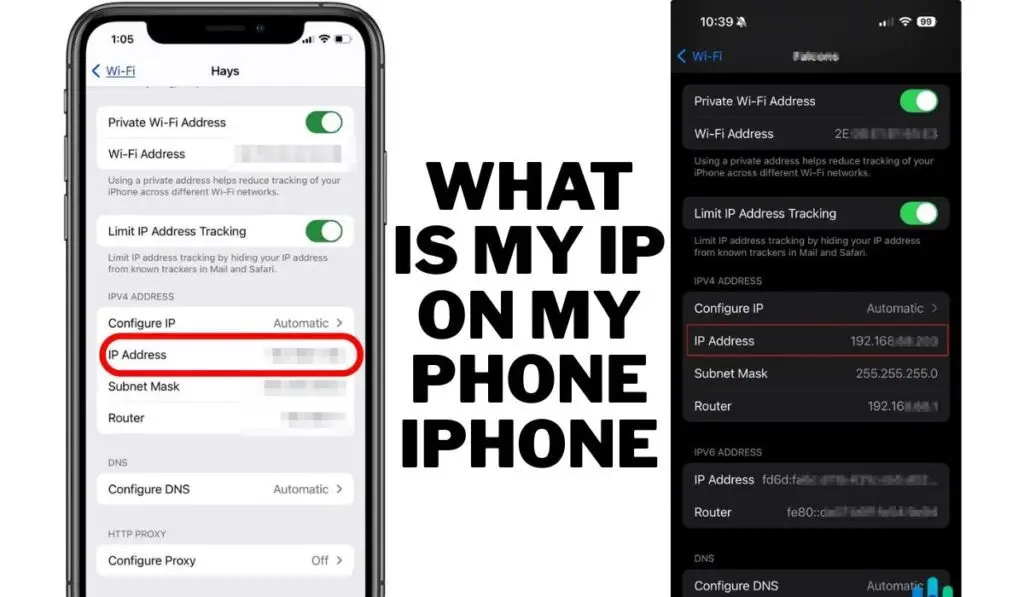
- Open Settings.
- Tap Wi-Fi.
- Tap the (i) icon next to your connected Wi-Fi network.
- Look for the IP Address section — that’s your private IP.
Example: 192.168.0.101 or 10.0.0.5
Find Your Public IP Address (Mobile or Wi-Fi)
To check your public IP:
- Open Safari or Chrome.
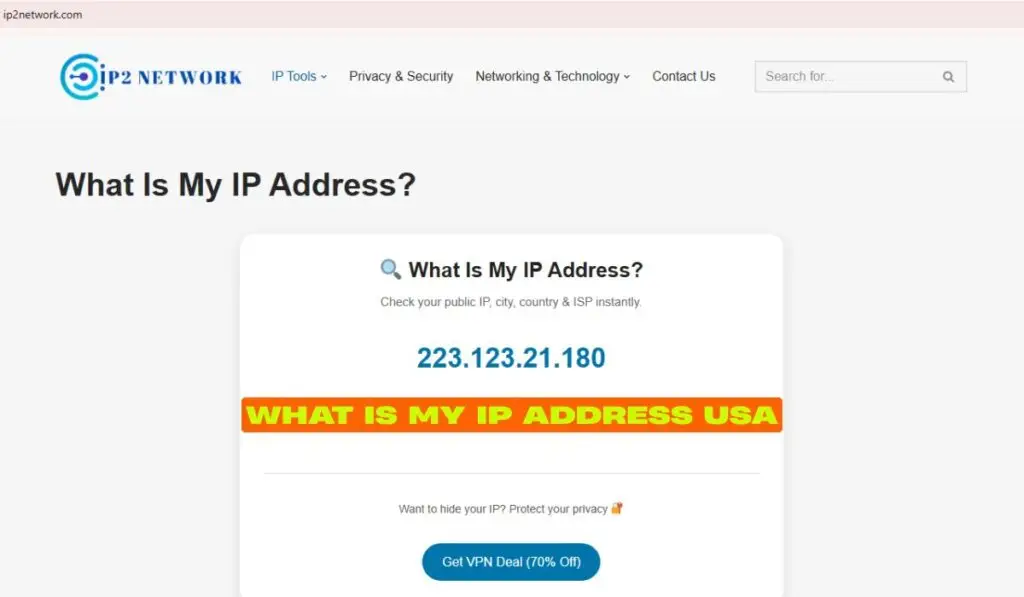
- Visit a trusted site like ip2network.com, whatismyip.com, or ipinfo.io.
- Your public IP will appear at the top of the page.
Example: 203.0.113.45
Pro Tip: If you switch from Wi-Fi to mobile data, your public IP will change — because your carrier assigns a different one.
What’s the Difference Between Public and Private IPs on iPhone?
| Type | Visibility | Assigned By | Example | Purpose |
|---|---|---|---|---|
| Private IP | Only visible in local network | Wi-Fi router | 192.168.1.2 | Device identification in LAN |
| Public IP | Visible to the internet | ISP or carrier | 49.176.23.88 | Online communication, websites |
In short:
- Your private IP helps your devices talk to each other locally.
- Your public IP connects your iPhone to the wider internet.
Both matter — but your public IP reveals more about your online location and ISP, which is why it’s important to know how to manage it securely.
Why Should You Know Your iPhone’s IP Address?
Knowing your IP isn’t just tech trivia. It’s essential for troubleshooting, privacy, and network optimization.
Here’s why:
- Fix Network Issues:
If your Wi-Fi isn’t connecting properly, checking your IP helps identify configuration errors or conflicts. - Improve Security:
Your IP can reveal your approximate location. Being aware of it helps you understand what data websites may see. - Set Up Smart Devices:
Many IoT or smart home systems require your device’s IP address for setup or troubleshooting. - Remote Access & File Sharing:
If you use AirDrop alternatives, remote access apps, or file transfer tools, knowing your IP ensures smooth connections. - Protect Privacy with VPNs:
When you use a VPN, it hides your real public IP and replaces it with one from another region — boosting your online anonymity.
How to Change or Hide Your IP Address on iPhone
You can’t permanently change your IP (since ISPs control that), but you can mask or switch it temporarily for privacy or access reasons.
1. Use a VPN (Virtual Private Network)
A VPN reroutes your connection through a secure server. It hides your real IP and replaces it with one from another country or region.
Popular VPNs for iPhone:
- NordVPN
- ExpressVPN
- ProtonVPN
- Surfshark
Benefits:
- Protects your online identity
- Allows access to geo-blocked websites
- Encrypts your data on public Wi-Fi
2. Reconnect to a Different Network
Each Wi-Fi network assigns a new private IP. Switching networks — for instance, from your home Wi-Fi to a hotspot — gives your iPhone a different IP.
3. Reset Your Network Settings
Go to:
Settings → General → Transfer or Reset iPhone → Reset → Reset Network Settings
This will refresh your connection details, possibly assigning a new IP address.
4. Enable Airplane Mode
Turning on Airplane Mode for a few seconds and turning it off can sometimes give you a new mobile IP, especially on cellular data.
Understanding Dynamic vs Static IPs on iPhone
Your iPhone’s IP isn’t always fixed — it changes depending on the type.
Dynamic IP
- Automatically assigned by your ISP or router.
- Changes frequently.
- Common for most users.
Static IP
- Manually set by you or your network admin.
- Remains constant even after rebooting.
- Useful for advanced setups like servers or remote access.
Most iPhones use dynamic IPs, since they’re simpler and more secure for everyday use.
How to Protect Your IP and Privacy on iPhone
Online privacy is becoming more important than ever. Here’s how to keep your IP (and identity) safe:
1. Use “Private Relay” (Apple’s Built-In Privacy Tool)
Apple’s iCloud Private Relay hides your IP from websites and trackers.
To enable:
- Go to Settings → [Your Name] → iCloud → Private Relay → Turn On
It works similarly to a VPN but keeps you inside Apple’s ecosystem.
2. Use Trusted Wi-Fi Networks
Avoid connecting to unknown public Wi-Fi without protection. Use a VPN or Private Relay when using coffee shop or airport Wi-Fi.
3. Keep iOS Updated
Security patches in updates often fix vulnerabilities that could expose your IP or data.
4. Clear Browsing Data
Regularly clear your Safari or Chrome history and cookies to reduce digital fingerprints.
Can Someone Track My iPhone Using My IP?
Technically, yes — but only to a limited extent.
Your IP reveals general geographic information (like your city or ISP), not your exact address. However, hackers or advertisers can still use it for tracking patterns or targeting ads.
To prevent that:
- Use VPNs or Private Relay
- Avoid sharing your IP publicly
- Use strong passwords and 2FA for accounts
Common Problems Related to IP on iPhone
| Issue | Possible Cause | Fix |
|---|---|---|
| No IP Address Assigned | Router issue or DHCP conflict | Restart Wi-Fi or reset network settings |
| Can’t Connect to Wi-Fi | IP address conflict | Forget network → reconnect |
| Public IP not changing | Carrier-based IP caching | Use VPN or switch to Airplane Mode temporarily |
When Does Your iPhone’s IP Address Change?
- When you move between Wi-Fi networks
- When you toggle mobile data
- When your router reassigns new DHCP addresses
- When using a VPN or Private Relay
- After a network reset
In other words — IP changes are normal and automatic. You don’t need to worry unless you need a fixed address for advanced tasks.
Summary: Key Takeaways
- Your iPhone’s IP address identifies it on the internet or your Wi-Fi network.
- You have two types of IPs: Private (local) and Public (internet-facing).
- Check your IP in Settings → Wi-Fi → (i) or by visiting a site like ip2network.com.
- You can change or hide your IP using VPNs, Private Relay, or network resets.
- Protect your privacy by avoiding public networks and keeping iOS updated.
Understanding your IP might sound technical — but it’s one of the simplest, most powerful steps you can take to protect your digital footprint in 2025.
FAQs About What Is My IP On My Phone Iphone?
1. How do I find my IP on my iPhone without Wi-Fi?
Open Safari and visit a site like ip2network.com while using mobile data. It will show your cellular public IP.
2. Is my iPhone IP address the same as my Wi-Fi IP?
No. Your iPhone has its own private IP on Wi-Fi, but shares the public IP assigned to your router.
3. Can I change my IP manually on iPhone?
You can configure a static IP under Wi-Fi → (i) → Configure IP → Manual, but this is usually not necessary for most users.
4. Does my IP reveal my exact location?
No. It only gives an approximate region or city. Websites can’t see your exact home address through IP alone.
5. Why does my IP keep changing on my iPhone?
Because most networks use dynamic IPs that refresh automatically when you reconnect or change networks.